Best for
Blurry or dim profile shots
Useful when the visitor already has a profile photo but it looks too soft, underlit, or low-resolution.
AI Profile Photo Enhancer
EditLuma helps you recover weak profile photos so they look cleaner, sharper, and more credible on LinkedIn, CVs, team pages, and founder bios.
Best when the visitor already has a photo and wants to rescue it before doing anything heavier.
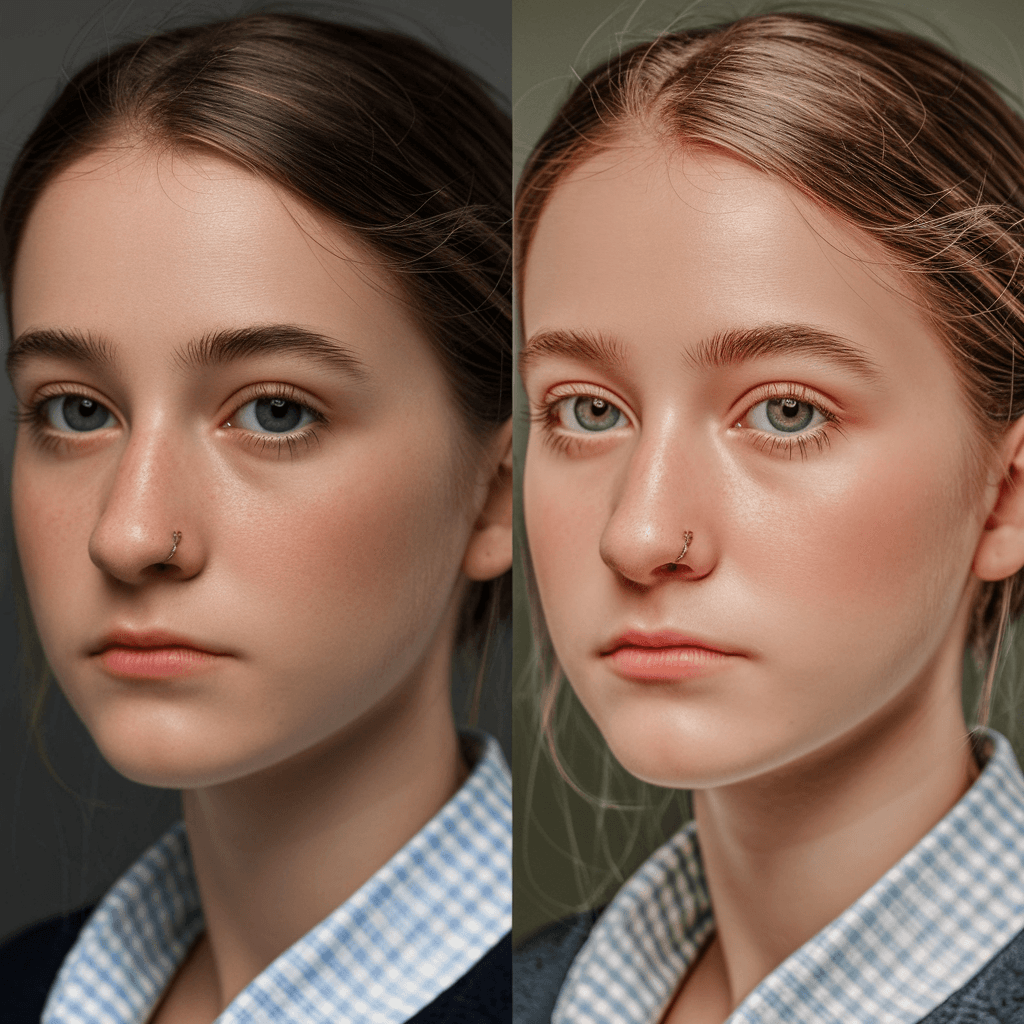
Built for profile shots that are almost usable but still too soft, dim, or rough for a strong first impression.
Best for
Blurry or dim profile shots
Useful when the visitor already has a profile photo but it looks too soft, underlit, or low-resolution.
Result style
Sharper, cleaner first impression
Improve clarity and presentation while keeping the face believable and easy to publish.
Workflow fit
Upload -> enhance
A fast repair path for LinkedIn photos, CV headshots, founder bios, and team pages.
Why this workflow
This workflow is for rescuing an existing profile photo, not replacing it with a totally new concept. Use it when the current image is close, but still too weak for public-facing use.
Rescue an existing profile photo first
Upgrade the photo you already have before spending time on a reshoot or a fully new generated concept.
Repair clarity, light, and texture
Fix softness, weak lighting, and low-resolution issues that make a public profile photo feel less credible.
Keep the face believable
The goal is a cleaner profile photo, not an overprocessed face that looks obviously filtered.
Ship faster across public pages
Use the improved photo across LinkedIn, resumes, team pages, speaker bios, and founder intros once it is ready.
How it works
A practical repair loop is simple: upload the weak source image, run one cleanup pass, and decide whether the result is now strong enough for the profile use case you care about.
Upload the current profile photo
Bring in the image you actually use today, even if it is cropped, softly focused, compressed, or a little dark.
Run a profile-photo enhancement pass
Repair light balance, facial clarity, and rough detail so the image reads more cleanly in public-facing contexts.
Check if it is ready to publish
Compare the result against the original and decide whether the upgraded version is strong enough for LinkedIn, a CV, or a team page.
Use cases
The strongest use cases are profile photos that are almost strong enough to keep, but not yet strong enough to ship.
Old LinkedIn or profile photos
Rescue an older headshot or selfie that still represents you correctly but no longer looks polished enough.
Resume and CV headshots
Make a current profile shot look more professional before it goes on a resume, CV, or application packet.
Founder and team pages
Improve existing team or founder photos when they look slightly too soft or too casual for company-facing use.
Creator and freelance profiles
Strengthen the current avatar or profile image without losing the subject's recognizability and personality.
FAQ
Visitors usually want to know whether their current photo can be saved or whether they should start over. These are the key decision points.
Profile photos that are slightly blurry, dim, compressed, or low-resolution usually improve the most. If the source image is already strong, the lift will be more subtle.
The goal is a cleaner, more readable profile photo, not a filtered look. You should still review the export and keep the version that feels believable.
Yes. A cropped selfie can work if the framing is usable and the face is still readable. If the source is too weak or too casual, the generator page may be the better fit.
Use the portrait enhancer when the image is primarily about a face or headshot and the visitor wants the strongest profile-photo-specific positioning and cleanup.
Related workflows
This page is the repair route for weak existing profile photos. When the visitor needs stronger portrait positioning or a new starting point, send them to the next best workflow below.
LinkedIn Headshot AI
Use the portrait-focused page when the visitor is clearly looking for the main profile-photo offer.
Explore page
AI Profile Photo Generator
Start here when the visitor needs a brand-new profile-photo direction instead of repairing an old image.
Explore page
Credit Pricing
Review package sizing before cleaning up several profile photos or running repeated revisions.
Explore page
Profile photo repair
If your current photo is almost usable but still too soft, dim, or rough for public-facing use, start with one cleanup pass before you replace it entirely.
Best when the visitor already has a photo and wants to rescue it before doing anything heavier.